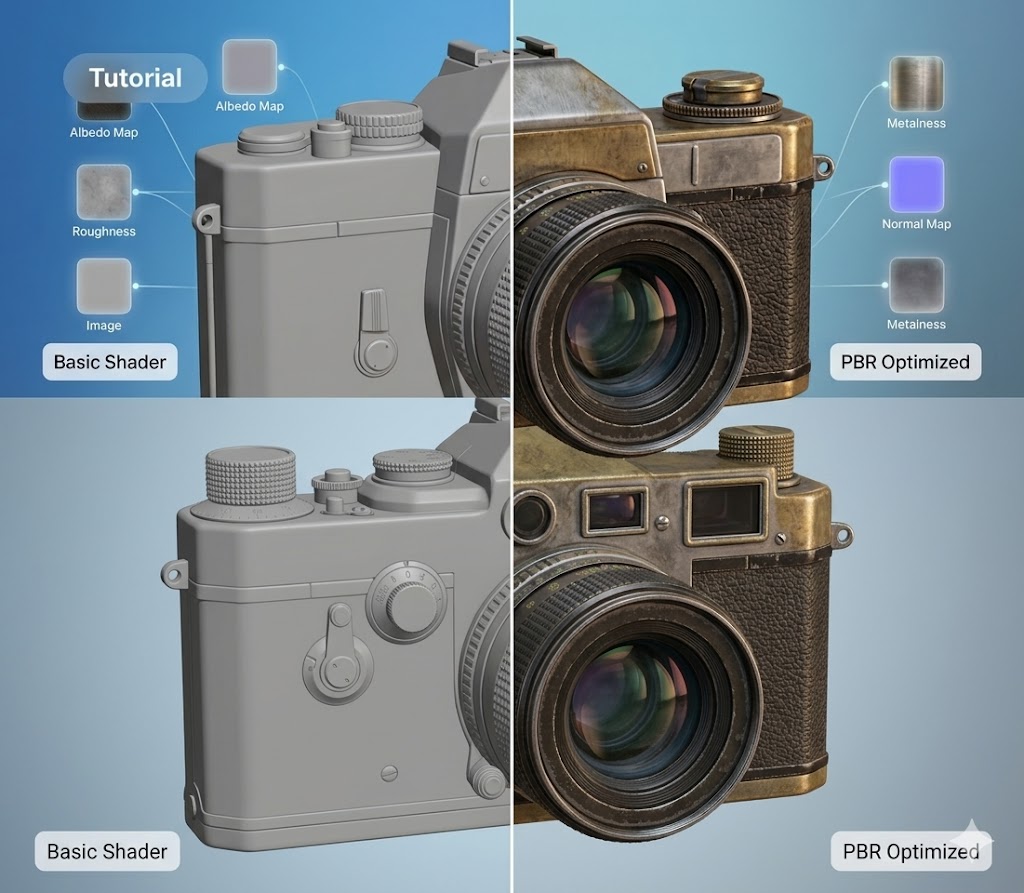
Materials make or break photorealism. A perfectly modeled scene with poor materials looks worse than a simple scene with well-crafted surfaces. Here are the practices that separate good materials from great ones.
Start with Reference
Always work from real-world reference photos. Before opening any material editor, study how the real material behaves: How does it reflect light at different angles? Is the surface perfectly smooth or subtly textured? Does it have any translucency?
Collect close-up photos under different lighting conditions. This reference library will guide every parameter you adjust.
Get the Roughness Right
Roughness is the most impactful material parameter for realism. Most beginners make surfaces too smooth (roughness too low), which creates an unrealistic glossy appearance.
Real-world surfaces almost always have micro-scratches, fingerprints, and wear patterns. Even a polished marble countertop isn't perfectly smooth. Use roughness maps with subtle variation to break up reflections naturally.
Normal Maps: Subtle is Better
Normal maps add surface detail without extra geometry. The common mistake is making them too strong, which creates an obviously fake bumpy appearance. Reduce the normal map strength until the detail is barely noticeable — then increase it slightly. Less is almost always more.
Color Should Not Be Perfectly Uniform
Real materials have subtle color variation. Wood has grain patterns, fabric has weave texture, concrete has aggregate variation. Even painted walls show slight roller marks under close inspection.
Add subtle noise or pattern variation to your base color maps to avoid the "plastic" look that comes from perfectly uniform color.
Environment Matters
Materials only look as good as the lighting they're viewed under. Test your materials with multiple HDRI environments and lighting setups. A material that looks great under studio lighting may look flat under natural daylight.
In Witmodel's material editor, you can quickly swap environments to validate your materials under different conditions before placing them in a scene.